
Understand every driver
on your PC.
Independent, information-only explanations of driver roles, Windows status messages, packaging standards, and update channels.
What Windows reports about drivers
Windows connects detected hardware to packages in its driver store and exposes status through Device Manager. Our explainers clarify what those records mean, which layer a driver controls, and why a status message can have more than one cause.
- Know which physical component each driver actually controls.
- Interpret status codes without assuming they identify a single cause.
- Compare update, rollback, and driver-store terminology in plain English.
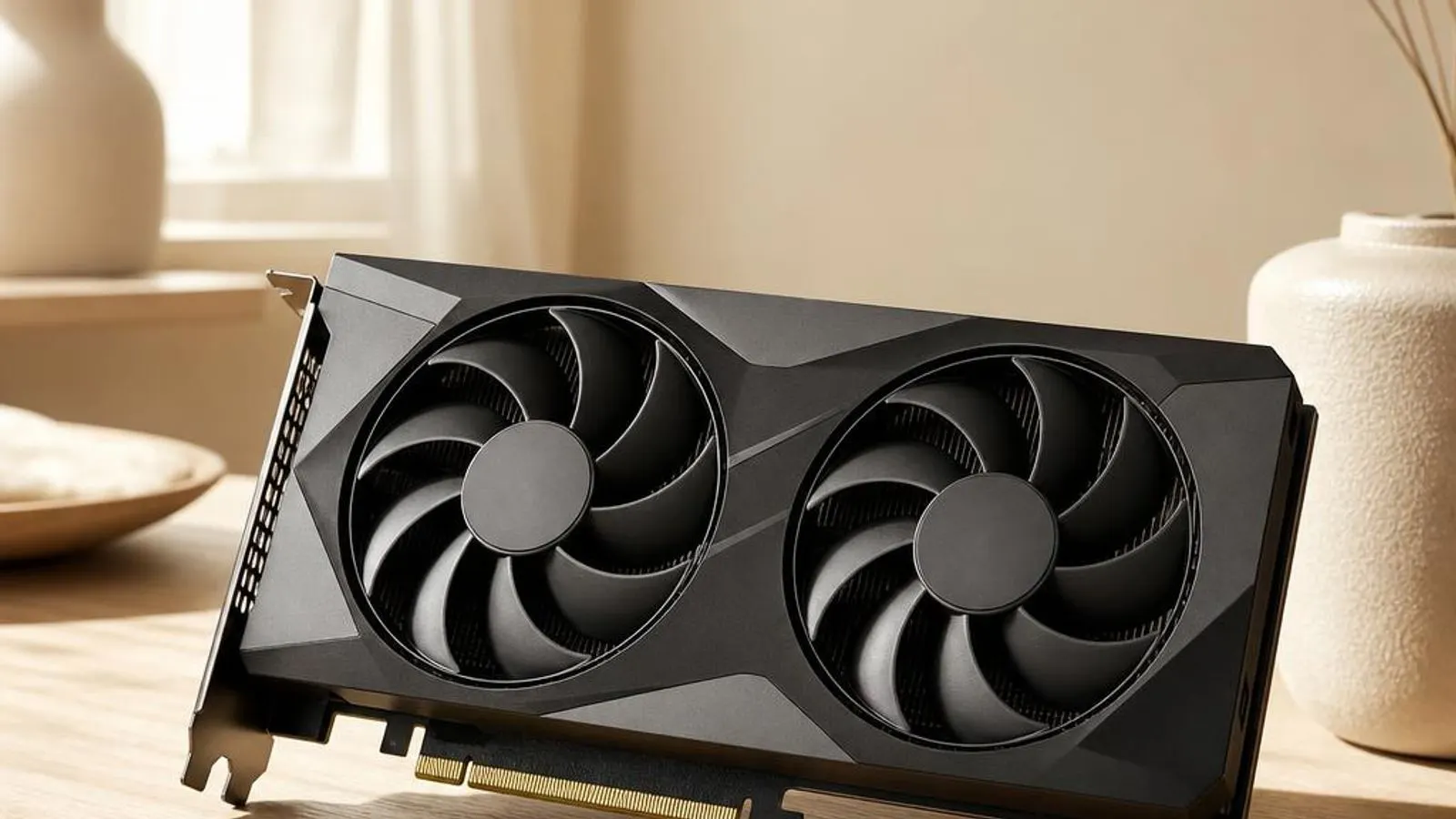
Graphics driver
Working properly - and you know why
Every PC driver, organised by category
All 22 driver explainers, grouped the way your device manager groups them. Pick a family, find your hardware, understand what runs it.
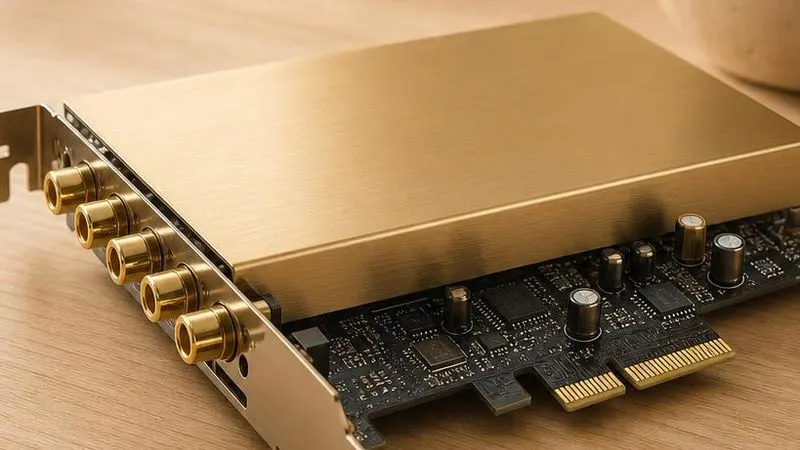
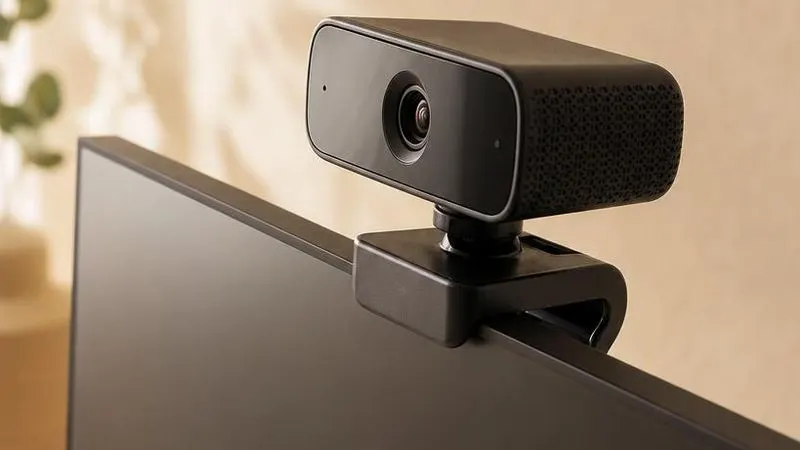
Everything you see and hear
Graphics cards, displays, audio codecs and webcams - the drivers behind your screens and speakers.
Explore all 6 explainers
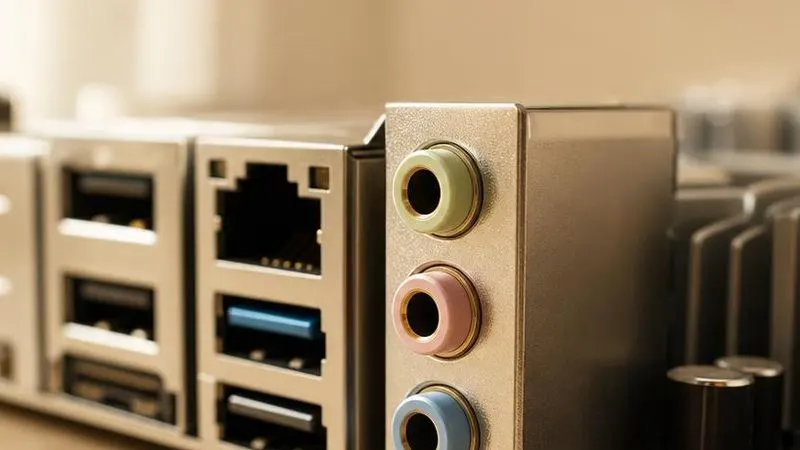


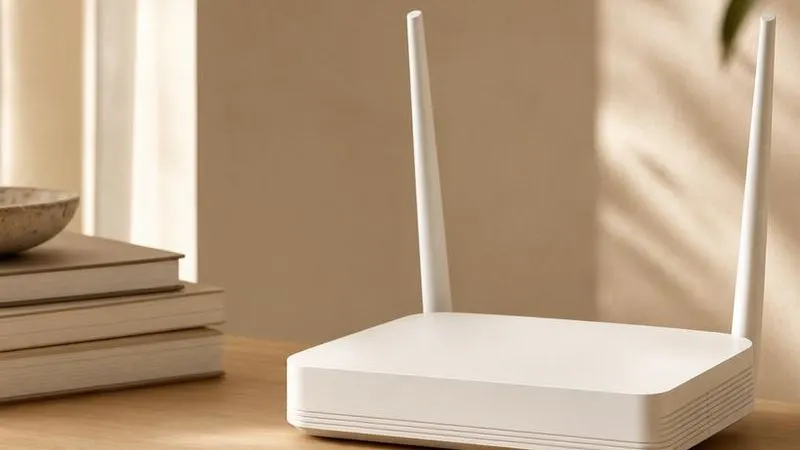
Every connection, explained
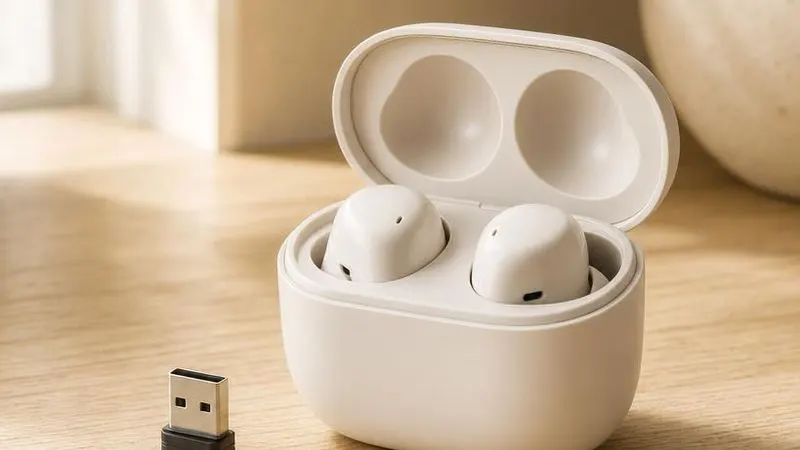
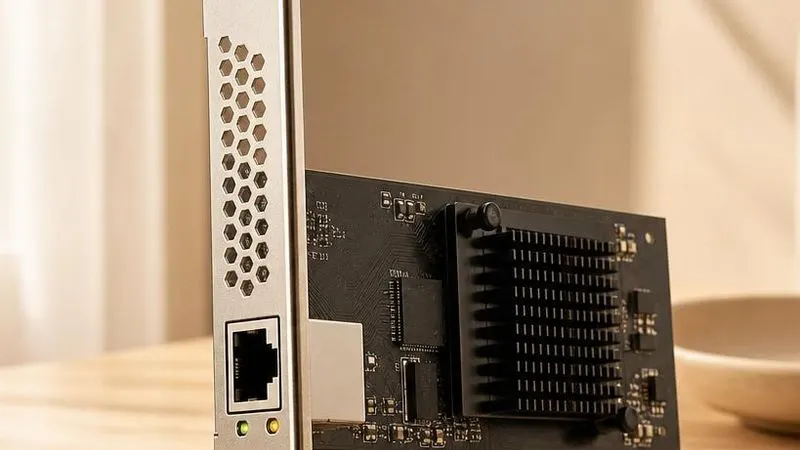
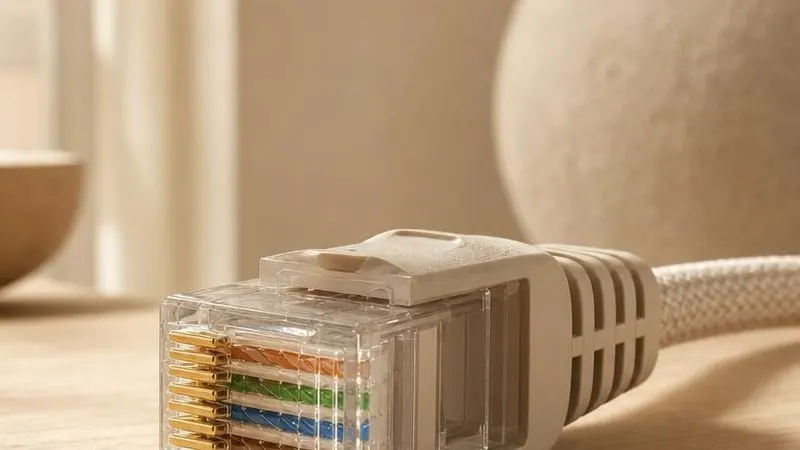
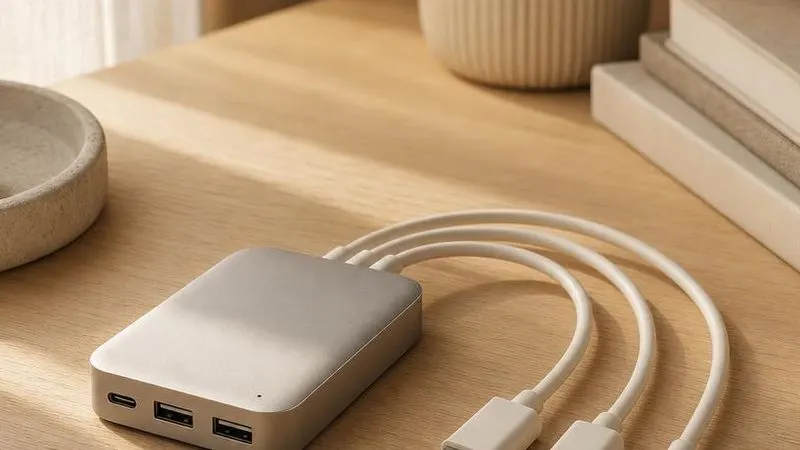
Wi-Fi, Bluetooth, Ethernet and USB - the drivers that keep data moving on and off your machine.
Explore all 5 explainers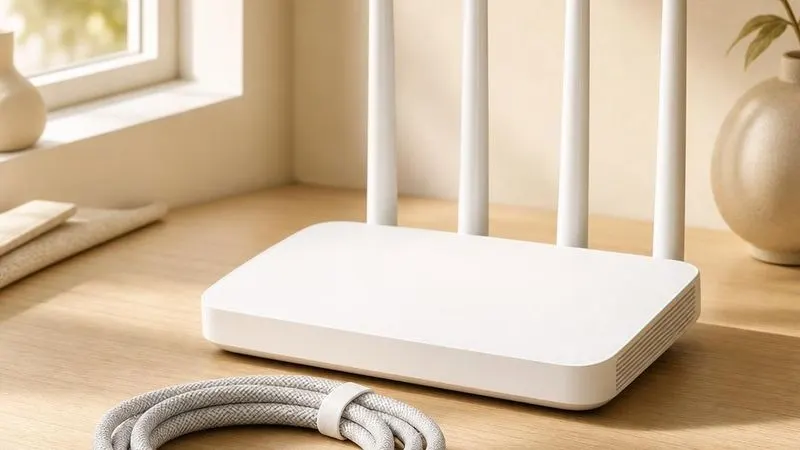
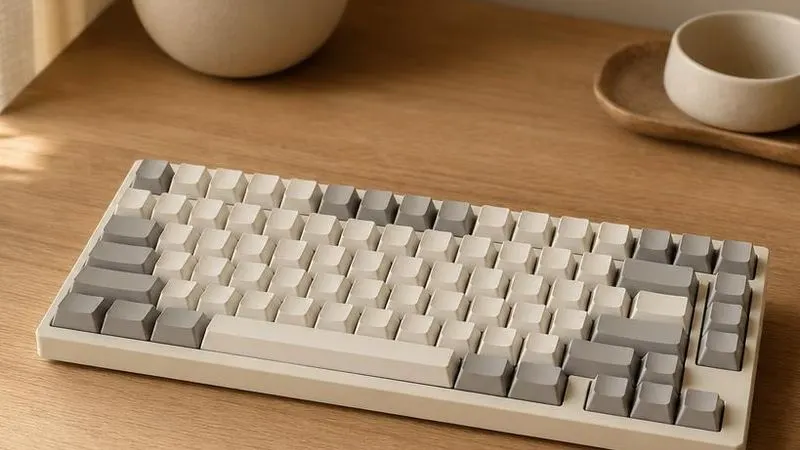
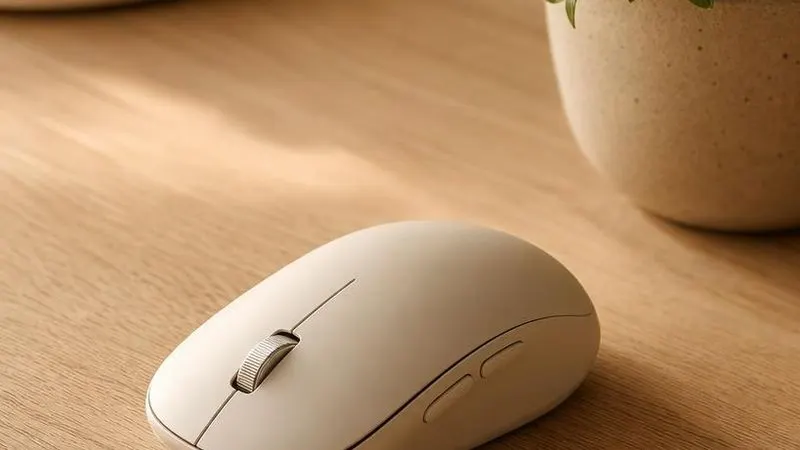
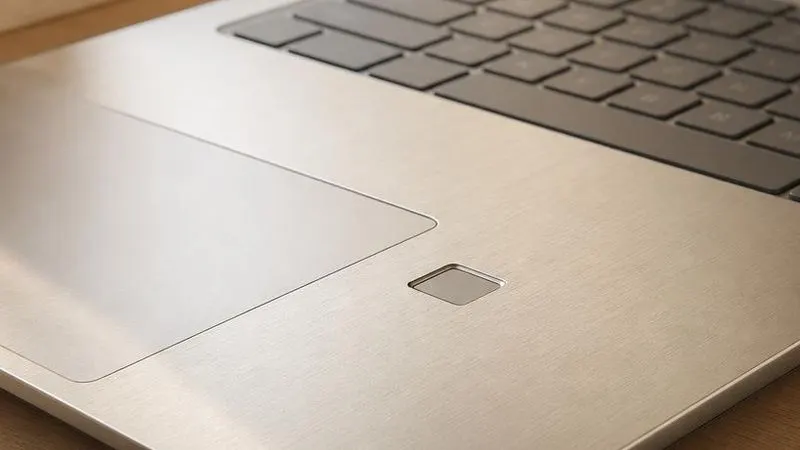
Every click, key and touch
Input drivers translate keystrokes, clicks, swipes and fingerprint scans into signals your OS understands.
Explore all 5 explainers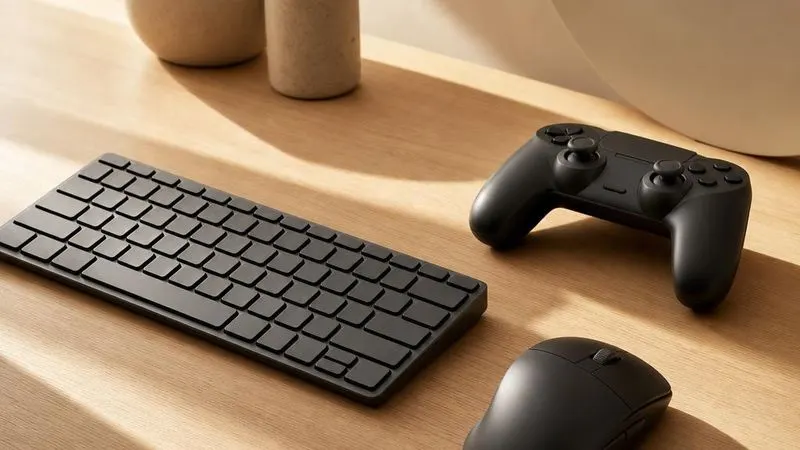


The engine room of your PC
Chipset, BIOS, TPM and storage - the invisible foundations every other component depends on.
Explore all 6 explainers
Latest guides
Detailed background on driver architecture, status messages, and package terminology.

Driver Updater Software: Capabilities and Trade-offs
An educational look at how automatic driver databases match hardware, why OEM customization matters, and how updater marketing can overstate urgency.
Offline INF Driver Packages Explained
What an INF package contains, how Windows evaluates it without an internet connection, and why signature and hardware-ID matching still apply offline.
The Microsoft Update Catalog as a Driver Archive
A factual overview of Catalog identifiers, CAB packages, hardware targeting, supersedence, and the limits of signed-package compatibility.
Driver Signature Enforcement and Windows Trust
Why Windows requires signed kernel drivers, what temporary enforcement changes mean, and how trust policy differs from hardware compatibility.
Explore symptoms by related driver layer
Common symptoms often overlap several software and hardware layers. These links open the driver explainer most closely associated with each topic; they are not a diagnosis.
Manual vs automatic driver updates
These are two distribution models, with different publishers, release timing, and model coverage.
Manual updates
From the device maker's official support page
- Component makers may publish releases before they appear in operating-system catalogs.
- Matched to your exact model - on laptops and prebuilt PCs, start from the computer maker's support page.
- Packages may include optional control panels, services, or companion applications.
- Selection and timing remain separate from the operating system’s normal update schedule.
Common for graphics, chipset, and Wi-Fi packages.
Automatic updates
Through your operating system's built-in update tool
- Packages can arrive alongside regular system updates and carry publisher and signature metadata.
- Free and already built in - no account, no extra software, no signup.
- Package selection is handled by hardware identifiers and compatibility metadata.
- Catalog releases can lag behind a device maker’s newest published version.
Designed for broad compatibility and routine delivery.
The important distinction: an operating-system catalog, a computer maker’s model catalog, and a component maker’s catalog may carry different versions of related software. DriverUpdateMax documents those differences without selecting a package or update path for an individual computer. Our FAQ defines the channels.
Understand the language of drivers
Release notes, Device Manager labels, and installer screens use specialist words. Our glossary turns them into plain English.
DCH Driver
The modern Windows 10/11 driver packaging standard: Declarative, Componentized, Hardware Support App. Separates the core driver from its companion app.
WHQL
Windows Hardware Quality Labs — Microsoft terminology associated with hardware compatibility testing and signed driver submissions.
DDU
Display Driver Uninstaller: a community tool that performs a deep clean of GPU drivers, removing registry entries and leftover files before a fresh install.
INF file
A plain-text setup script that tells Windows how to install a driver: which files to copy, which registry keys to create, and which hardware IDs to bind.
Device Manager
The built-in Windows control panel that lists every piece of hardware Windows has enumerated, shows driver status, and lets you update, roll back, or uninstall.
Driver signing
A digital signature applied by a code-signing authority that lets Windows verify a driver was not modified after the vendor published it.
The Windows Driver Stack
How your hardware communicates with the operating system.
Supported operating systems
See system requirementsFour concepts in an update record
Hardware identity
Device Manager displays the component name, current provider and version, while VEN/DEV values identify supported hardware.
System state
Restore points and the driver store are separate Windows mechanisms that can preserve portions of an earlier configuration.
Distribution source
Operating-system, computer-maker, and component-maker catalogs differ in validation scope, release timing, and included companion software.
Package transition
A package can stage files in the driver store, bind them to hardware, replace services, and request a restart when loaded components cannot change in place.
How driver changes fit into a PC
Drivers sit between applications, the operating-system kernel, firmware, and physical hardware. A crash, slow transfer, or dropped connection can therefore coincide with a driver event without proving that the driver caused it. Status codes and event timing are evidence, not automatic conclusions.
Graphics, chipset, storage, Wi-Fi, and Bluetooth packages affect different parts of that stack. Release notes document the hardware IDs, operating-system versions, known limitations, and changed behavior a publisher associates with a release.
The provider, date, version, and signer shown by Windows describe the installed package. Those facts are useful for comparing documentation, but a newer date alone does not establish that a package is compatible, necessary, or better for a particular machine.
Identity
Hardware IDs connect a physical device to compatible package declarations.
Package
The provider, signer, version, and date describe the software release.
Context
Firmware, OS version, and model customizations affect compatibility.
Frequently asked questions
Browse the right driver topic.
Choose a hardware category and operating system to see matching educational explainers. No scan, diagnosis, or recommendation is performed.
Open the topic navigator